English
SSH Assets
SSH assets cover Linux, Unix and SSH-enabled network devices. This guide follows the complete path from asset creation to authorization and daily terminal use.
Prerequisites
- The target SSH service is running.
- The Next Terminal server or selected gateway can reach its address and port.
- You have a password or SSH private key. Create a reusable Credential when multiple hosts share an account.
- The target SSH service supports SFTP if Web file management is required.
Add an SSH asset
Open Asset Management > Assets, click Create, and configure:
| Field | Configuration |
|---|---|
| Protocol | Select SSH; the default port is 22 |
| Address and port | Enter an address reachable from Next Terminal or the gateway |
| Account type | Password, private key or saved credential |
| Alias | Recommended for SSH proxy direct mode |
| Gateway chain | Select a Security or SSH Gateway when direct access is unavailable |
For private-key authentication, enter the username and private key. Also provide its passphrase when the key is encrypted.
SSH advanced settings
| Setting | Purpose |
|---|---|
| Alive check | Detect whether the session is still active |
| OS detection | Detect target system information and icon |
| Connect timeout | Wait 1–300 seconds for connection establishment |
| Backspace mode | Switch between DEL and BS when terminal deletion behaves incorrectly |
| Environment | Pass required environment variables to the session |
| AI settings | Enable the assistant and choose a command execution policy for this asset |
| WOL | Configure Wake-on-LAN details for supported devices |
Authorize and connect
Test the asset as an administrator, then assign it through Resource Authorization.
Users can connect from the Browser Access Workspace, a standard client through the SSH Proxy Server, or Termark.
Web terminal tools
- File system manages the target through SFTP.
- Command snippets insert reusable commands.
- Status monitor reads CPU, memory, disk and network data when the target provides the required commands.
- Session sharing creates a collaborative session entry.
- Search and display settings control terminal navigation, clipboard behavior and theme.
- AI assistant appears only when enabled globally and for the asset.
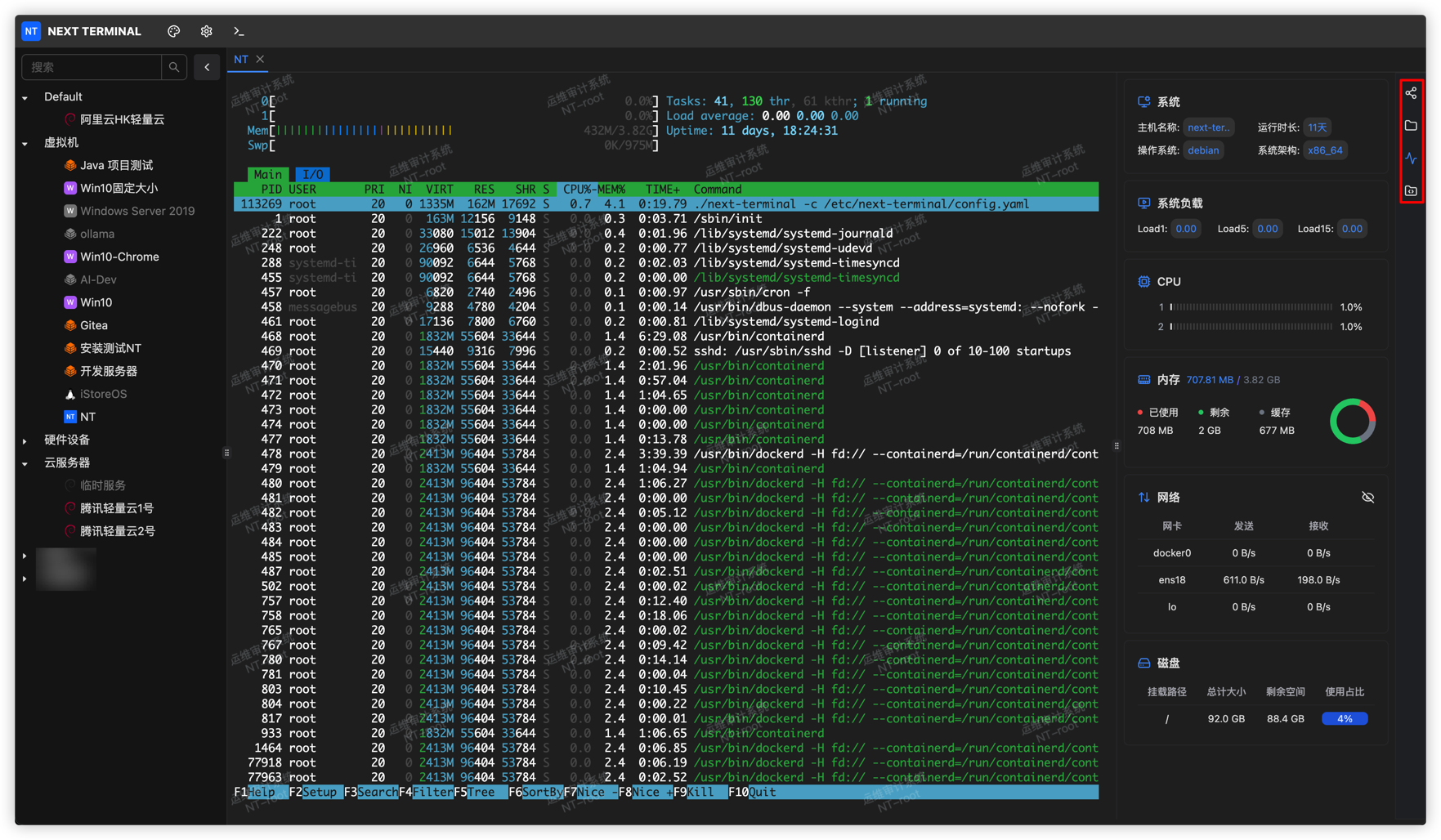
SSH file management
Open a session and click the folder icon. The drawer represents the target host's actual filesystem, not Next Terminal storage. Available actions depend on the access strategy and may include upload, download, create, rename, delete, edit, image preview and permission changes. See File Management.
Command snippets
Administrators manage snippets under Asset Management > Command Snippets. In a session, open the snippets panel and click Use to insert one into the terminal.
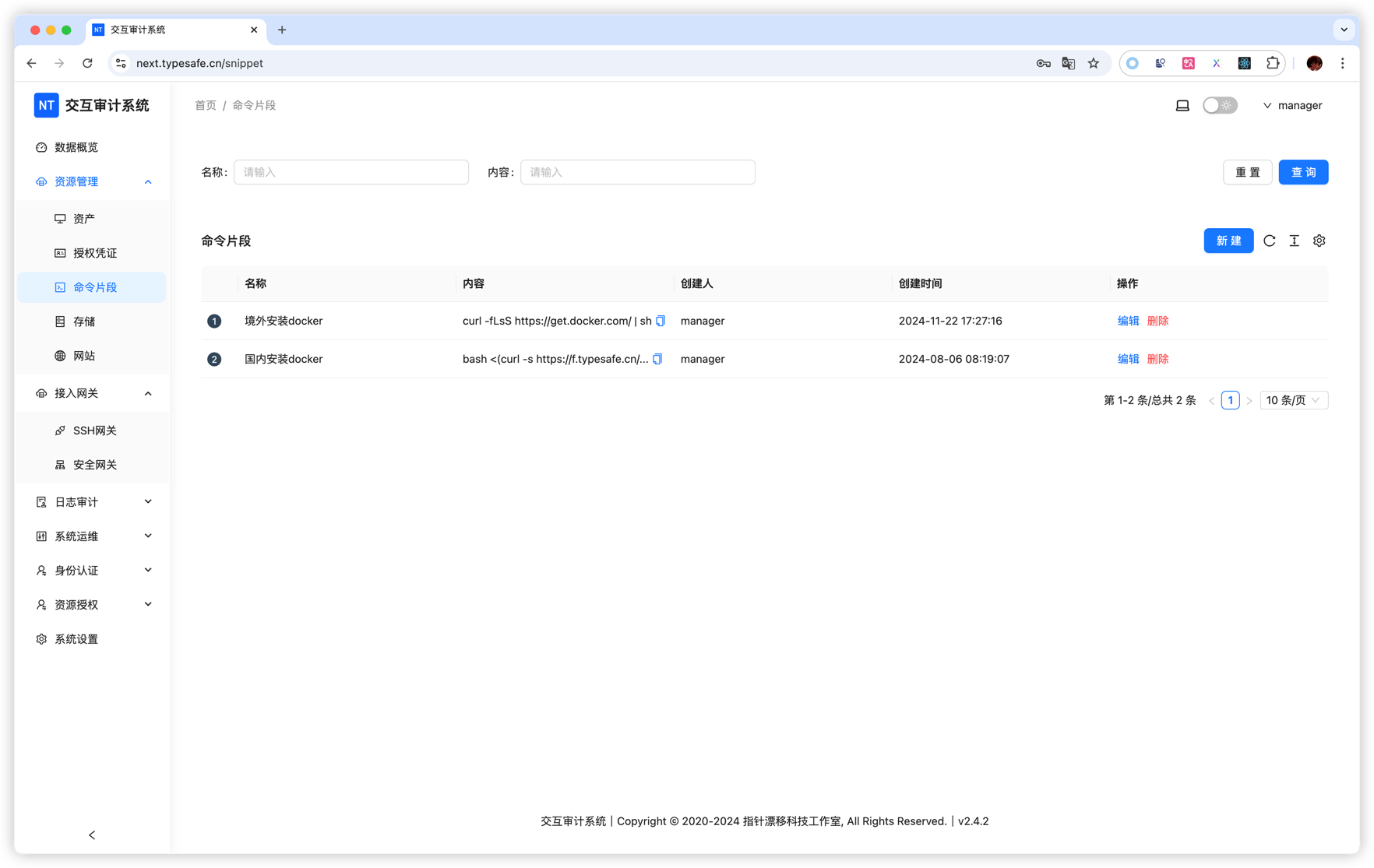
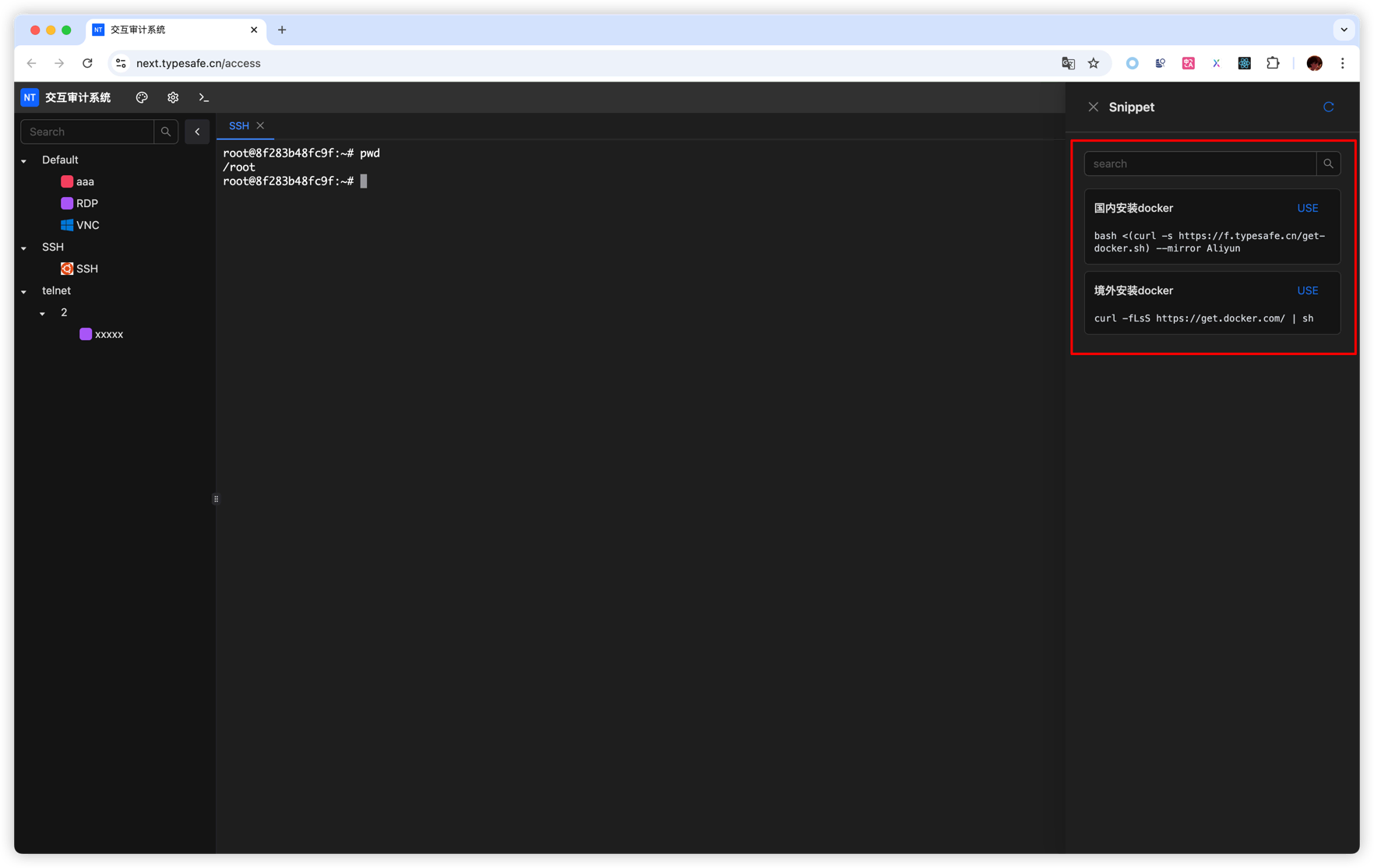
Review inserted commands before running them. Never store passwords, tokens or private keys in snippets.
Troubleshooting
- Connection timeout: verify address, port, firewall and gateway; increase the timeout only when the target is genuinely slow.
- Authentication failure: verify username, account type, key format and passphrase. Install the corresponding public key when using a generated key credential.
- No file system: confirm SFTP support and the user's authorization strategy.
- Incorrect Backspace behavior: switch the SSH asset's Backspace mode and reconnect.